Vendorful can dramatically speed up the process of generating the first draft of a questionnaire response, but it's not a total replacement for human beings. In fact, we strongly recommend that all responses are put through a human review process before they are submitted. In certain cases, subject matter expert might have particular expertise that they can bring to bear on specific questions and answers. And in other scenarios, subject matter experts might simply mark answers as Approved. Using Vendorful's collaboration features, you can assign them those Q&As.
Assigning a Reviewer
To assign one or more reviewers — or in the case where the AI Assistant didn't fill in an answer, an editor — find the relevant question on the Review Screen. Once you've identified it, move your eyes right until you see a small icon with a person in it. Look a the screenshot below to see it.

Now, click the icon and you'll see a dropdown list of the users in your organization. There will also be a text box. Typing in the text box will filter the users, allowing you to specify which one you want to assign the question/answer.

Once you've selected the desired user, this will be reflected in the user interface.

To add additional assignees, click on the name(s) of the assignee(s). To remove the user assignment, simply click the "x" adjacent to the person icon in that area.
BulkAssigning a Reviewer
Sometimes you want to assign a review to multiple questions/answers. To do this, you can simply click the checkboxes on the left side of the question. When they are selected, they will have a checkbox. When they are unselected, they will be empty.
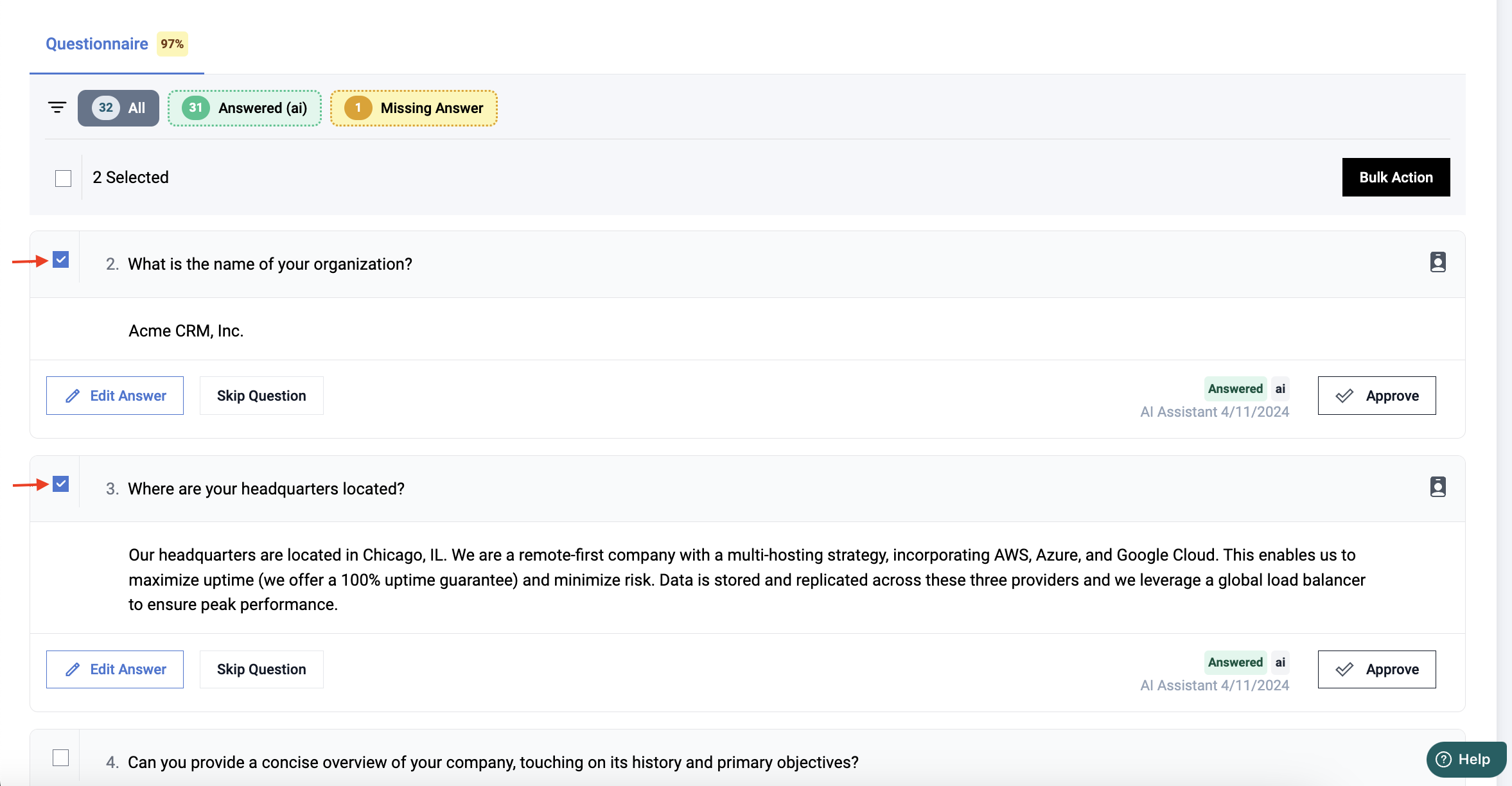
After you've selected the questions/answers that you want reviewed, click the "Bulk Action" button on the upper right.
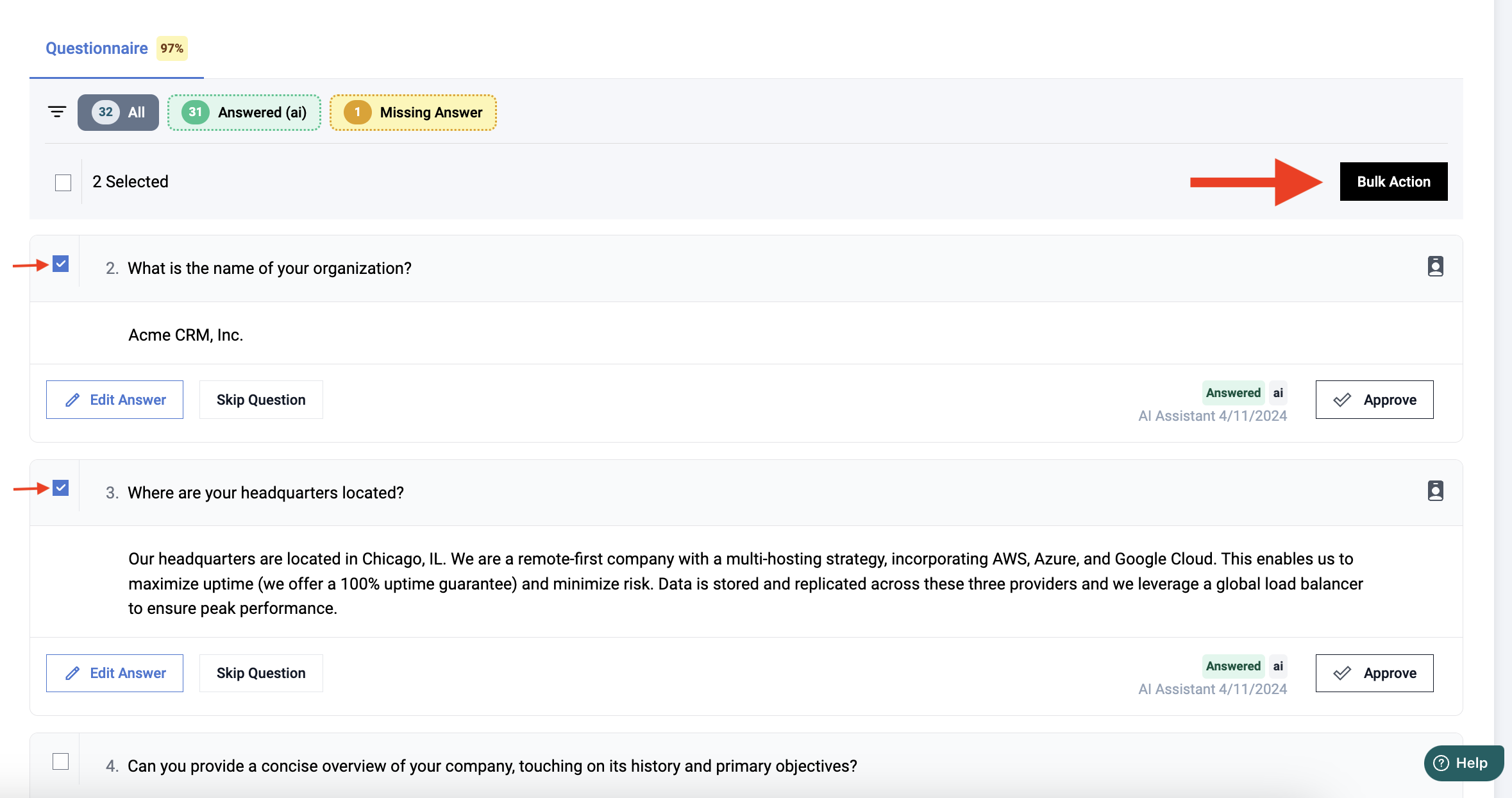
You will be presented with a dropdown that, when clicked, will show you an action called "Assign To." When you click this, you will be able select one or more assignees.
User Notification
You do not need to send a message to a user you've assign to review a Q&A. Vendorful will email them automatically. However, this email won't be sent immediately. We realize that you might be assigning multiple Q&As to co-workers. So we wait until five minutes have passed with no new assignees. At that point, we'll send out emails that list the newly-assigned questions. While there is a slight delay, we feel that this is preferable to sending a user a new email for each assigned question.
Tracking What You've Assigned/Been Assigned
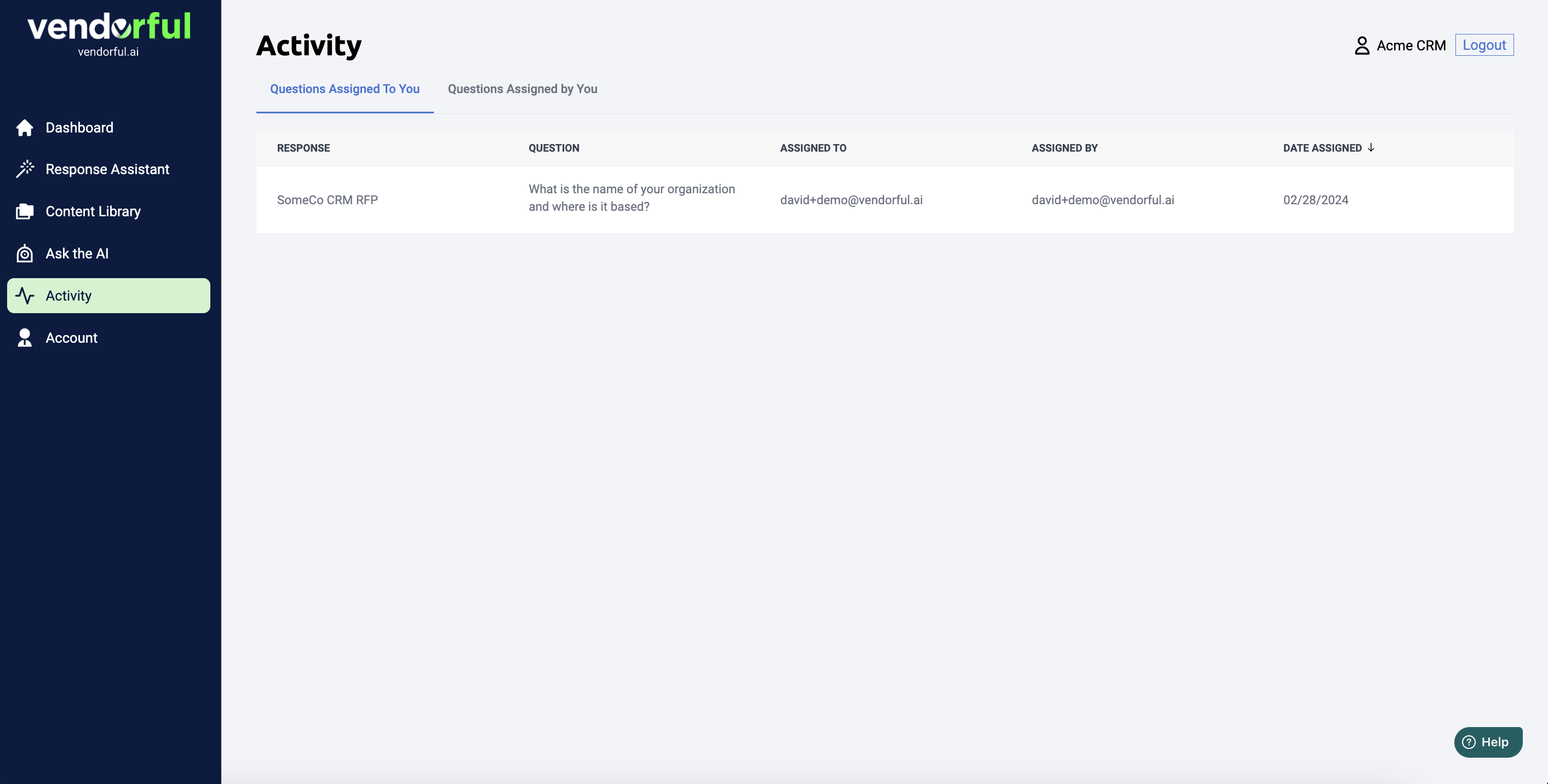
If you are assigned a Q&A to review, you will receive an email. But if you want to see what's on your list and sift through your inbox, you can find this in the app. Click the "Tasks" link on the left side of the screen. You will see two tabs. The first tab will show you the questions that have been assigned to you. Clicking the question itself will take you directly to the question.
The second tab will show you the questions that you have assigned to your coworkers.
Was this article helpful?
That’s Great!
Thank you for your feedback
Sorry! We couldn't be helpful
Thank you for your feedback
Feedback sent
We appreciate your effort and will try to fix the article